Showing posts with label windows xp. Show all posts

Friday, May 9, 2008

CANGE / ADD RESTRICTIONS IN WINDOWS

1.Open>>>>>RegEdit


2.Go to HKEY_CURRENT_USER\Software\Microsoft\CurrentVersion
\Policies


3.Go to the Explorer Key


4.Then right click on the right side pane and select "Create Dword".
Select appropriate value name from the list given below and enter "1" for
enabling the value and "0" for disabling it.


NoDeletePrinter - Disables Deletion of Printers
NoAddPrinter - Disables Addition of Printers
NoRun - Disables Run Command
NoSetFolders - Removes Folders from Settings on Start Menu
NoSetTaskbar - Removes Taskbar from Settings on Start Menu
NoFind - Removes the Find Command
NoDrives - Hides Drives in My Computers
NoNetHood - Hides the Network Neighborhood
NoDesktop - Hides all icons on the Desktop
NoClose - Disables Shutdown
NoSaveSettings - Don't save settings on exit
DisableRegistryTools - Disable Registry Editing Tools
NoRecentDocsMenu - Hides the Documents shortcut at the Start button
NoRecentDocsHistory- Clears history of Documents
NoFileMenu _ Hides the Files Menu in Explorer
NoActiveDesktop - No Active Desktop
NoActiveDesktopChanges- No changes allowed
NoInternetIcon - No Internet Explorer Icon on the Desktop
NoFavoritesMenu - Hides the Favorites menu
NoChangeStartMenu _ Disables changes to the Start Menu
NoFolderOptions _ Hides the Folder Options in the
ExplorerClearRecentDocsOnExit - Empty the recent Docs
folder on rebootNoLogoff - Hides the
Log Off .... in the Start Menu.

MAKE VISTA LOOK FOR XP

If you are still a Windows XP user like me, you should definitely check out this cool free software called Vistamizer, which can make your XP look like Vista.
While there has been quite some negative comments about Windows Vista since its release last year, one thing for sure is the new graphical interface of Vista is really cool.. a lot cooler than Windows XP.
So in order to make XP look like Vista, I use this cool stuff called Vistamizer.
This cool software will modifies your system files, and totally convert your system into the cool Vista GUI.
You will not remember how your old desktop looks like after installing Vistamizer.
The good thing about this software is that it will backup all the changes that have been made to your system, so you can easily revert it back to the original system setting.
I installed Vistamizer on my Windows XP few days back, and have no complaint on it so far. It's stable, and does not affect the system performance.
My friend actually thought that I have upgraded to Vista when I show them my new desktop . A great software to make XP look like Vista.

Tuesday, November 6, 2007

Have you forgot your user account password

If you forgot your user account password pass word
No problem. Here is a solution.
(This works only when there is no password for Administrator account).
Start windows in Safe mode. (while booting press F8 to start in safe mode)
While entering into the windows it shows
Administrator account
Your account
Click on administrator account
Then you can enter into windows in safe mode
Go to control panel
Open user accounts
Click up on your account
Clik on “remove password”
Reboot windows.
Then you can enter into Your account without password.
It is only one method of troubleshooting. Don’t do this on other’s system.

can you create Folder?

It is looking Funny!So try to create these folders (or files)
CON, .CON, CON. ,COM1 ,COM2 , COM3 ,COM4 ,LPT1 ,LPT2 ,LPT3 ,PRN ,NUL ,
AUXOnce Check it Out.It is impossible. Interesting !
You aren't allowed to create folders with names that are the same as the ones that have been used for various devices on a PC since the DOS era."CON" refers to "console",
in DOS."PRN" refers to "printer,""LPT1," "LPT2," etc., and "COM1," "COM2," etc. refers to the communication ports.The bug has been tried and tested in both Windows XP Home and Professional.
If you try to make a folder named "CON" (case insensitive), Windows XP renames it back to what it was. So creating a new folder with the name "CON" just renames it to "New Folder".
The bug seems like a variable that got treated as a string or vice-versa. Trying to create the folder from a cmd prompt failed with an error "The directory name is invalid.".This also works when you try to create a file called "CON", or "CON.". ".CON" shows up the way it should.
Methods To Create Above Folders:
Method 1:
STEP1: goto command prompt
STEP2: type in prompt e:\> ((mkdir \\.\e:\con))
STEP3: verify by typing ((dir \\.\e:\con))
STEP4: delete the file or folder ((rmdir \\.\e:\con))
Note::Not necessary for to go only E:,u canm create in any Drive.(This method is bulky and confusion. So You can Use}.

Method 2:
Create Folder While name Type CON and then stroke the key ALT+0160 on numeric key pad.
CON -> ALT+0160)Then you can create CON folder and other described folders.It means that when you type a folder name with simple ALT+0160 you can create empty folder.
There is no name for a folder.Here we are using "CON " (CON with space).This is the tricky logic here.

Show Hidden files/folders in Windows (When you can't) using the Command Prompt

A friend of mine once approached me with a simple yet strange request. "How do I view hidden files and folders in Windows XP ? ". The fact that he had been using Windows for years astounded me. Off course, he knew how to view hidden files & folders, but this was a unique case.

He sent me a screenshot of his folder options box. Take a look


Strangely, both 'Do not show hidden files and folders' & 'Show hidden files and folders' were enabled.My initial reaction was it may be a virus, trojan, spyware or some malware. Scanning with various anti-virus and anti-spyware software didn't reveal anything. The funny thing here was all the hidden files were perpetually hidden; we weren't able to get the files in the hidden folders even with a Windows search. So using the command prompt to find hidden files was the best option. How to do it?Let's say you want to see all hidden stuff inside the D:\Temp folder. Check the steps below:

1. Go to Start >> Run. Type cmd and press Enter to open the command prompt.

2. Now navigate to the directory from the command prompt.[For eg. Assume you are in C:\Documents and Setting\Jose. and you want to go to D:\Temp; type D: and press enter. This will take you the root D:\ in the command prompt. Type cd Temp in the command prompt and press Enter. Now you'll be inside D:/Temp from the command prompt.]

3. Type the command dir/ah to list all the files under D:\Temp.

Once you get the name of the files, you can view or run them by entering the file path in the address bar of Windows (The address bar of Windows is similar to the address bar of Internet Explorer, where you type the website or folder address).To delete files use the del [Folder Name] in the command prompt. This will delete the folder you specify under the current directory. Eg del Temp

Delet undeletable with UNLOCKER

This is pretty useful if you have packed the Windows taskbar by opening many applications and files. Do you hate closing all those files individually? If yes, then this is for you!It is unbelievably easy; just press and hold the Ctrl key. Now click all the applications you want to close while still holding down the Ctrl key. Right-click any of the applications you selected and click Close Group.
It is done!So, now you know to get rid of this annoyance.

Delete/Rename locked Windows files with Unlocker


"Cannot delete File4.mp3: It is being used by another person or program".


You may have come across the above message quite a few times. This happens because Windows locks files or folders that are currently used by other applications or shared by other users.


In comes Unlocker! What is that?Unlocker is a small freeware which will help take instant action when you encounter similar situations. Once installed, Unlocker will be available from the right-click context menu


If you get a message when trying to delete or rename a locked Windows file or folder, just right-click the file and select Unlocker.Unlocker will open a window displaying all the processes that are locking the file or folder. Select some of them and click Unlock.You can now proceed with you task

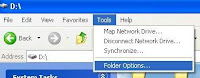
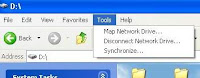
Remove "Folder Options" from Tools menu in Windows XP

I have tried this with Windows XP pro, and I'm not sure whether this will work with other XP variants.

Removing the "Folder Options" menu involves modifying the Windows Group Policy editor (gpedit.msc).

Just follow the below listed steps.

1. Go to Start >> Run

Type gpedit.msc and press Enter.

2. In the resulting window, navigate to the folderUser Configuration >> Administrative Templates >> Windows Components >> Windows Explorer.

Look for the key named "Removes the Folder Options menu from the Tools Menu".Double-click the key and select Enable.

Click OK.


3. To display the "Folder Options" menu, follow the previous steps and select the Not Configured option for the "Removes the Folder Options menu from the Tools Menu" key.

Recover deleted files in Windows

Did you ever delete some files from the Recycle Bin only to discover later those files were important?Many people are unaware that deleting a file from the Recycle Bin doesn't really "Delete" the file from the Hard Drive.In fact, when a file is deleted, Windows marks the file for deletion and removes it from the File System Database.The space occupied by the file is marked as free space for new data, but the old file is still present.If some new data is written in the same part where the old file existed, the old file may become unrecoverable.So, an immediately deleted file has good chances of recovery.There are tools available to recover deleted files. Following are some of the Free tools:

1. PC Inspector File Recovery. (Freeware) (download)

PC Inspector recovers lost files and finds partitions automatically, even when the boot sector of your drive has been erased of damaged, or the file's header information is not available. You can save the recovered files in your machine. Files are recovered with the original date and time stamp.I personally use PC Inspector.

2. Restoration. (Freeware) (download)

You can read more about Restoration here

3. VirtualLab Data Recovery Software. (Free to try) (download)

Read more about VirtualLab Data Recovery Software here.

Thursday, September 27, 2007

Make Your XP Genuine !


To make your Windows XP genuine so that you can avail the updates from microsoft , Do the Following :

1. Start > Run > "regedit" (without the quotes of course)

2. Go To The Key:

HKEY_LOCAL_MACHINE\SOFTWARE\MICROSOFT\Windows NT\CurrentVersion\WPAEvents\OOBETimer

...and doubleclick on it and edit the replace first 2 digits with 67.

3. Start > Run > "%systemroot%\system32\oobe\msoobe.exe /a" (again, dont type the quotes)

4. The activation screen will come up, click on register over telephone, then click on CHANGE PRODUCT KEY, enter in this key: JG28K-H9Q7X-BH6W4-3PDCQ-6XBFJ.

5. No need to Enter confirmation code, now just click remind me later and ITS DONE !

Hibernate Your XP !

Hey your Windows XP has a very good but hidden feature !

Trick Advantage :
You can leave your work in between and shutdown the PC and resume it next time as it is !
Even I switched off my PC while writing this article and when I reopened it I resumed my article from where i left !

When you want to stop your work and shutdown(Keeping your programs open)
Do The Following :
1. Click start>Turn Off Computer
2. As the Turn Off menu comes up press 'Shift' and 'Stand By' changes to 'Hibernate'
3. Click Hibernate (Shift Kept Pressed)

Your xp will save the work and shutdown !

Now, when you switch it on again it will resume it again !

No loading of windows will take place and you will be resumed to your work as if you had just switched your monitor off and now on again !

Its Amazing !

Hidden Programs In Windows XP !

Strange, but true that some good programs are hidden in Windows XP !!!

Programs :

1. Private Character Editor :
Used for editing fonts,etc.

** start>>Run
** Now, type eudcedit


2. Dr. Watson :
This an inbuilt windows repairing software !

** start>>Run
** Now, type drwtsn32


3. Media Player 5.1 :
Even if you upgrade your Media Player, you can still access your old player in case the new one fails !!!

** start>>Run
** Now, type mplay32


4. iExpress :
Used to create Setups

You can create your own installers !

** start>>Run
** Now, type iexpress

Make Your Own Icons In Windows XP !


Now even personalize your ICONS with Windows XP !
To make your own ICON :
1. Start>>All Programs>>Accessories2. Click Paint3. In toolbar select Image4. Click Attributes--------------------- Note : The size of a icon is 32 x 32 pixels ! ---------------------5. Type 32 in both Height and Width and sure that Pixels is selected under Units6. Click OK7. Now add your photo or design .8. File>>Save As9. Type name.ico10. Click SaveEnjoy your New ICON !!!

Monday, August 27, 2007

More about Windows Vienna

Windows "Vienna" (formerly known as Blackcomb) is a codename for a future version of Microsoft Windows, originally announced in February 2000, that has been subject to major delays and rescheduling. It is expected to be the successor to both Windows Vista and Windows Server 2008. Microsoft has announced it will be released in 2009, and according to "Smart Computing In Plain English", a technology magazine, work on it began right after Windows Vista was released. As of February 2007, the name of the operating system used internally is undisclosed and is not used publicly by Microsoft, though "Windows 7" has been noted in job postings as a working name for the project.

Microsoft has refrained from discussing the details about "Vienna" publicly as they focus on the release and marketing of Windows Vista, though some early details of various core operating system features have emerged at developer conferences such as Windows Hardware Engineering Conference in 2006.

The code name "Blackcomb" was originally assigned to Windows NT 6, an operating system that was planned to follow both the desktop/workstation-oriented Windows XP (Windows NT 5.1, codenamed "Whistler"; both named after the Whistler-Blackcomb resort) and the server-oriented Windows Server 2003 (Windows NT 5.2). In late 2001 the release of Blackcomb was being scheduled for 2005 and in August it was announced that a minor intermediate release, Vista (codenamed "Longhorn" after a bar in the Whistler Blackcomb Resort), would ship in 2002 to update the Windows NT 5.x line. Over the following years Longhorn morphed in fits, starts, and delays to incorporate many of the features promised for Blackcomb and was eventually designated as Windows NT 6. The status of the operating system dubbed "Blackcomb," however, was shrouded in confusion with some reports suggesting that plans for Blackcomb were scrapped while others claiming that it would be the moniker for a server-only Windows 6.x release. More likely, the codename "Blackcomb" was discarded as no longer being in the spirit of its original intent (i.e., to describe Windows NT 6). At the present, it is believed that Windows "Vienna" is being planned as both a client and server release with a current release estimate of late 2009, although no firm date or year has yet been publicized.


At first, internal sources pitched Blackcomb as being not just a major revision of Windows, but a complete departure from the way users today typically think about interacting with a computer.[citation needed] For instance, the "Start" philosophy, introduced in Windows 95, may be replaced by the "new interface" which was said in 1999 to be scheduled for "Vienna". While Windows Vista was intended to be an evolutionary release, Vienna is targeted directly at revolutionizing the way users of the product interact with their PCs.

On February 9, 2007, Microsoft's Ben Fathi claimed that the focus on the operating system was still being worked out, and could merely hint at some possibilities:
“ "We're going to look at a fundamental piece of enabling technology. Maybe it's hypervisors. I don't know what it is" "Maybe it's a new user interface paradigm for consumers." ”

Bill Gates, in an interview with Newsweek, also suggested that the next version of Windows would "be more user-centric." When asked to clarify what he meant, Gates said:
“ "That means that right now when you move from one PC to another, you've got to install apps on each one, do upgrades on each one. Moving information between them is very painful. We can use Live Services to know what you're interested in. So even if you drop by a [public] kiosk or somebody else's PC, we can bring down your home page, your files, your fonts, your favorites and those things. So that's kind of the user-centric thing that Live Services can enable. [Also,] in Vista, things got a lot better with [digital] ink and speech, but by the next release there will be a much bigger bet. Students won't need textbooks; they can just use these tablet devices. Parallel computing is pretty important for the next release. We'll make it so that a lot of the high-level graphics will be just built into the operating system. So we've got a pretty good outline." ”


Several other features originally planned for Windows Vista may be part of "Vienna", depending on when they are finished.

"Vienna" will also feature the sandboxed approach discussed during the Alpha/White Box development phase for Longhorn. All non-managed code will run in a sandboxed environment where access to the "outside world" is restricted by the operating system. Access to raw sockets will be disabled from within the sandbox, as will direct access to the file system, hardware abstraction layer (HAL), and complete memory addressing.[citation needed] All access to outside applications, files, and protocols will be regulated by the operating system, and any malicious activity will be halted immediately.[citation needed] If this approach is successful, it bodes very well for security and safety, as it is virtually impossible for a malicious application to cause any damage to the system if it is locked inside a metaphorical 'glass box.' As well, this sand boxed environment will be able to adapt itself to the code base it was written for. This will alleviate most problems that arise from back compatibility when a new operating system is made.

Another feature mentioned by Bill Gates is "a pervasive typing line that will recognize the sentence that [the user is] typing in." The implications of this could be as simple as a "complete as you type" function as found in most modern search engines, (e.g. Google Suggest), ENSO, or as complex as being able to give verbal commands to the PC without any concern for syntax. The former has been incorporated to an extent in Windows Vista.

Microsoft recently confirmed at the Windows Hardware Engineering Conference (WinHEC 2007) in Los Angeles, that Windows Server 2008 would be the last 32-bit release of Windows Server that Microsoft develops. This would assume that all Windows Server releases after this will be exclusively 64-bit.

Paul Thurrott states in his Supersite for Windows, that according to Microsoft's x64 migration schedule, Windows Vienna will almost certainly only ship in 64-bit editions.

This means that, although there will be continued backward compatibility with 32-bit applications, 16-bit Windows and MS-DOS applications will not be supported, as is the case in the existing x64 versions of Windows.

Dual booting XP and Linux

# First, start off with a machine with XP already installed on it.

# Next, download a Linux distro.

# Burn a CD of the ISO you downloaded and pop it into the drive and boot up off of it.

# Start the install process. This will take you through the Welcome screen, the Where are you? screen and the Keyboard layout screen.

# Now you’ll come to the disk partitioner. Choose the Resize [main partition] and use freed space option. This is where you find out if you have enough free space to do the job. The default recommendation for the new partition size will be ideal, but you can move the slider along to change the values to suit. When you’re done, click Forward.

# Now you can go away and leave the install to churn away until it’s done. It shouldn’t take all that long.

# When the install is complete the system will reboot.

# When the system boot up, now you’ll be greeted by the GRUB boot menu. From here you can choose which OS to boot into. In my case Ubuntu will be the default and will start automatically in 10 seconds.

# The first time that you reboot into Windows the OS will more than likely want to check the disk since the partition has changed size since Windows was last running. XP will also likely want to re-detect hardware and such and probably reboot.

# That’s it!

PCs with Windows XP only until January 2008

Microsoft wants to only offer OEM versions of Windows XP by 31 January 2008. There is to be system Builder versions of Windows XP still to 2009.

The support for the old XP-version runs out according to Microsoft only 2014. Since at the end of January 2007 offers the manufacturer the XP-successor to Windows Vista.

Windows XP service pack 3 in 2008

To all appearances Microsoft wants to make available next Service Pack for Windows XP only to in the middle of 2008 for the Download. Thus there would be nearly four years break between SP2 and SP3.

Second shift

Already at the beginning of this yearly had Microsoft admits given to actually shift for center 2006 planned service luggage 3 on 2007. The recent change of date increases the delay on full two years. The software producer did not call concrete reasons for it however.

Microsoft Office gets VoIP

The Microsoft Office package is supplemented around VoIP functions. The software “Office Communications server 2007” and “Unified Communications Clients Office Communicator 2007” will be published in March as beta versions. With new applications the user can telephone directly from Office applications. For example is sufficient click on a name in a Word document or an Excel table and the software makes the connection.

Windows server 2008

Windows Server 2008 will be launched in February 2008, and not this year as it was hoped for a time. The next OS of Microsoft was indeed awaited for this November and one feared delays then. However, according to Microsoft, the code will be finalized since 2007. All should thus be officially announced at the time of a conference in Los Angeles, on February 27, 2008. To stick to this new calendar, Microsoft installed a meter on its dedicated site. Microsoft SQL Server 2008 and Visual Studio 2008 should them also stick to this expiry.

Since April, Longhorn server, version of Vista directed waiters, is available in version beta 3, freely accessible to the remote loading in a multitude from editions (standard, Enterprise, Datacenter, Web server, Server Core).

Mandriva 2008 -- The new Linux

Mandriva announces the color for its distribution Mandriva Linux 2008 to leave on September 27, 2007.

According to the official calendar, the final version of the distribution Linux Mandriva 2008 should be born on September 27, 2007 after in particular the publication of a first version beta between the 2 and August 16. In short Based on the very recent core Linux 2.6.22, Mandriva Linux 2008 will integrate its batch of traditional updates with the graphic waiter X.org 7.3, the last stable versions of the environments of Bureau XFCE 4.4.1 and KDE 3.5.7 as GNOME in its grinding 2.20 which will be available next September

Page copy protected against web site content infringement by HACKER
Google